
DPI scaling issues in VS and vsHome
From version 6.326 of VS and vsHome, we upgraded many of our core libraries, which might cause an issue with the way the screen is scaled.
You may experience the following issues:
- Icons appear pixelated or low-quality
- Certain fonts appear smaller than usual or are difficult to read
- You are unable to click on a point or member in the 3D view window
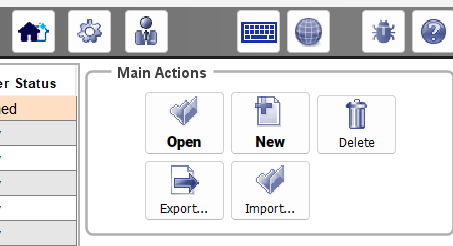
Example of icons appearing pixelated or low-quality
Check your display settings scale in Windows
This issue occurs if you are scaling your display settings in Windows to anything greater than 100%.
Here's how to check your Display Settings' Scaling:
On the Desktop, right-mouse click and go to Display Settings. It takes you the System > Display.
Check the Scale, we have only seen problems when the scale is greater than 100%.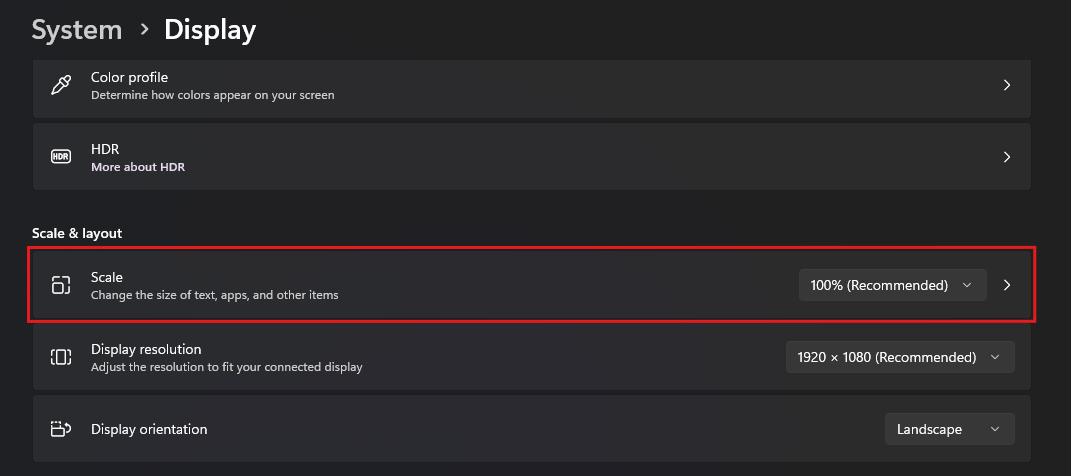
The first thing you can do is reduce the scale to 100%. If you are happy with the way your Windows desktop and programs look, then sticking with 100% scale will also fix the way VS and vsHome look.
If you want to keep your scale to a value greater than 100%, then please follow the instructions in next section.
Change the compatibility settings in Windows for VS and vsHome.
This will allow you to keep the Display Settings scale to a value greater than 100% and correct the problems in VS and vsHome.
- Open Windows Explorer and go to the installation directory of the software, this is c:\PSTLtd.
- Go into the appropriate VS or vsHome directory and look for the EXE files for your system, for example virtual_salesroom.exe and virtual_salesroom_debug.exe or vshome.exe and vshome_debug.exe.
- Right-mouse click each of them in turn and go to Properties > Compatibility
- Click on Change high DPI settings.
- A new pop-window will appear, tick the box Override high DPI scaling behaviour and chose Scaling performed by: System.
- Click OK to go back to the Properties window.
- Click OK to close the Properties window.
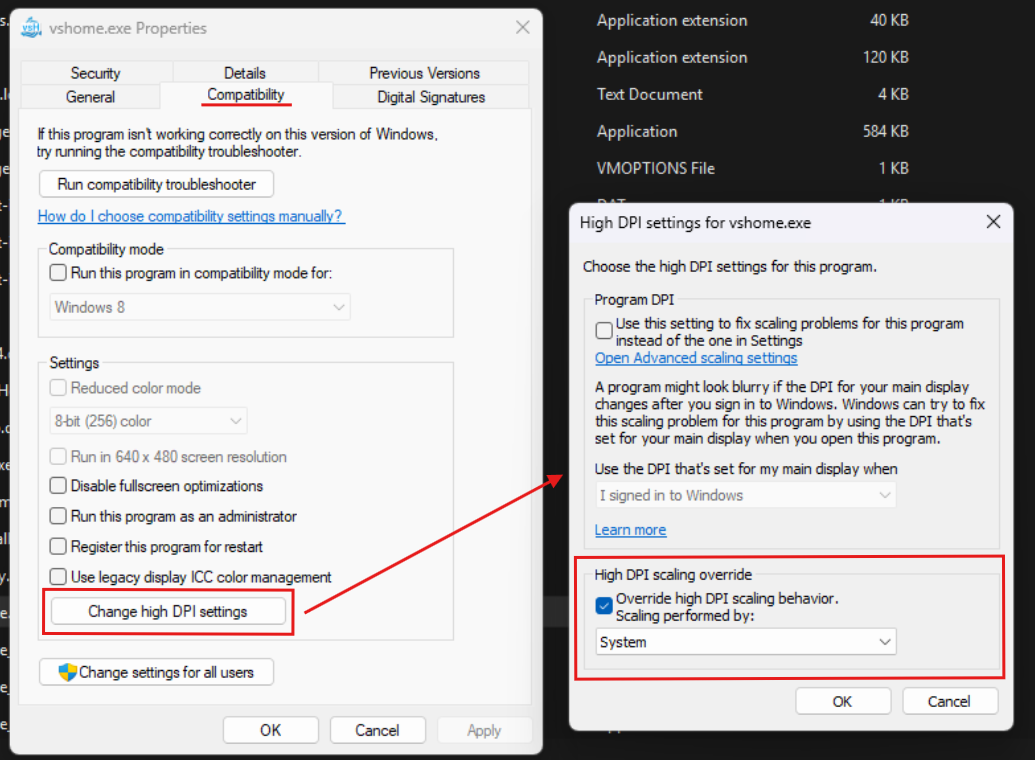
Changing the DPI settings for an EXE file
Launch VS or vsHome again and the problem should be fixed.